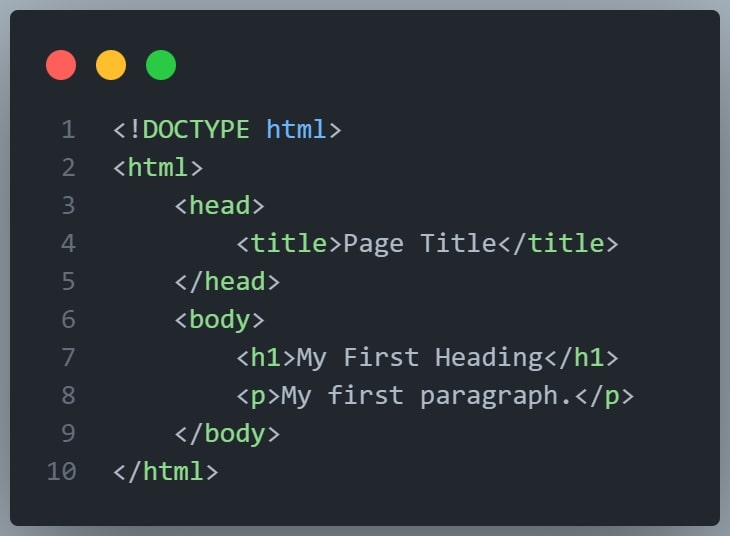
<!DOCTYPE html> declaration defines that this document is an HTML5 document<html> element is the root element of an HTML page<head> element contains meta information about the HTML page<title> element specifies a title for the HTML page (which is shown in the browser's title bar or in the page's tab)<body> element defines the document's body, and is a container for all the visible contents, such as headings, paragraphs, images, hyperlinks, tables, lists, etc.<h1> element defines a large heading<p> element defines a paragraphAn HTML element is defined by a start tag, some content, and an end tag:
The HTML element is everything from the start tag to the end tag:
Ex:- <tagname> Content goes here... </tagname>
<h1> My First Heading </h1>
<p> first paragraph. </p>
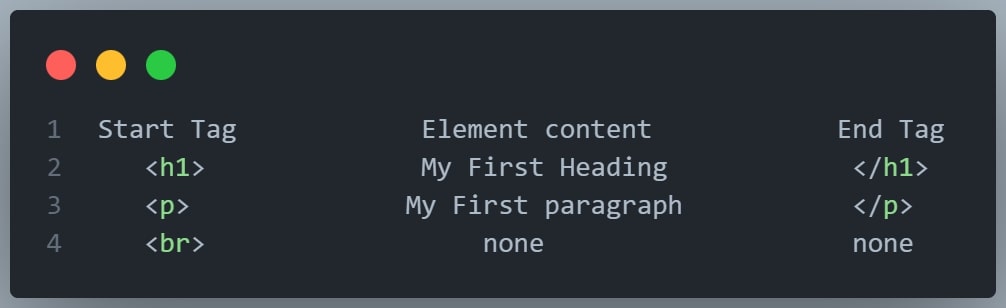
Note:Some HTML elements have no content (like the <br> element). These elements are called empty elements. Empty elements do not have an end tag!
The purpose of a web browser (Chrome, Edge, Firefox, Safari) is to read HTML documents and display them correctly.
A browser does not display the HTML tags, but uses them to determine how to display the document:
Below is a visualization of an HTML page structure:
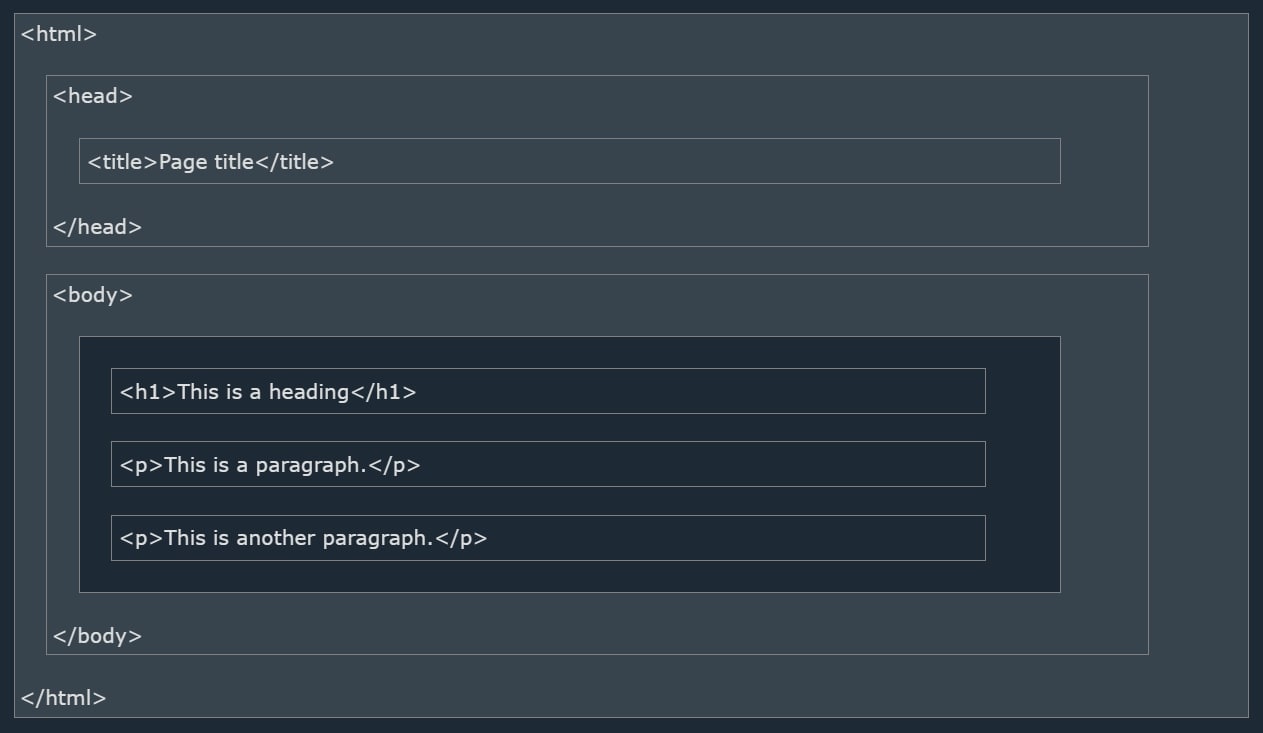
Note: The content inside the <body> section will be displayed in a browser.
The content inside the <title> element will be shown in the browser's title bar or in the page's tab.
Took me 3 hours to make the table lol
| Year | Version |
|---|---|
| 1989 | Tim Berners-Lee invented World Wide Web (www) |
| 1991 | Tim Berners-Lee invented HTML |
| 1993 | Dave Raggett drafted HTML+ |
| 1995 | HTML Working Group defined HTML 2.0 |
| 1997 | W3C Recommendation: HTML 3.2 |
| 1999 | W3C Recommendation: HTML 4.01 |
| 2000 | W3C Recommendation: XHTML 1.0 |
| 2008 | WHATWG HTML5 First Public Draft |
| 2012 | WHATWG HTML5 Living Standard |
| 2014 | W3C Recommendation: HTML5 |
| 2016 | W3C Candidate Recommendation: HTML 5.1 |
| 2017 | W3C Recommendation: HTML5.1 2nd Edition |
| 2017 | W3C Recommendation: HTML5.2 |
This Website created By Manith Fernando teach HTML5.2
The HTML element is everything from the start tag to the end tag:
<tagname> Content goes here... </tagname>Examples of some HTML elements:
<h1> My First Heading </h1><p> My first paragraph </p> HTML elements can be nested (this means that elements can contain other elements).
All HTML documents consist of nested HTML elements.
The following example contains four HTML elements (<html>,<body>,<h1> and <p>):
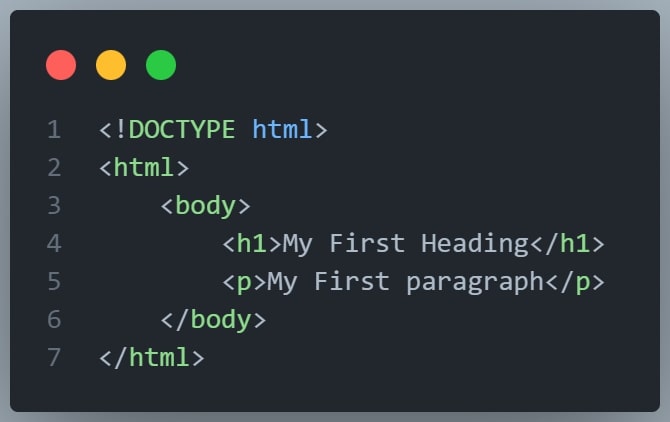
The <html> element is the root element and it defines the whole HTML document.
It has a start tag <html> and an end tag </html>
Then, inside the <html> element there is a <body> element:.
The <body> element defines the document's body.
It has a start tag <body> and an end tag </body>
Then, inside the
<h1> and <p>
The <h1> element defines a heading.
It has a start tag <h1> and an end tag </h1>
The <p> element defines a paragraph.
It has a start tag <p> and an end tag </p>
Some HTML elements will display correctly, even if you forget the end tag:
HTML elements with no content are called empty elements.
The <br> tag defines a line break, and is an empty element without a closing tag:
HTML tags are not case sensitive: <P> means the same as <p>.
| Tag | Description |
|---|---|
<html> |
Defines the root of an HTML document |
<body> |
Defines the document's body |
<h1> to <h6> |
Defines HTML headings |
For a complete list of all available HTML tags, visit this website called HTML Tag Reference since it may take me 128 hours to make it all if I made a table by myself.
The <a> tag defines a hyperlink. The href attribute specifies the URL of the page the link goes to:

You will learn more about links on a later lesson
The <img> tag is used to embed an image in an HTML page.
The src attribute specifies the path to the image to be displayed:
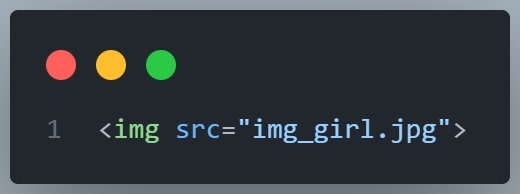
There are two ways to specify the URL in the src attribute:
Links to an external image that is hosted on another website. Example: src="https://www.w3schools.com/images/img_girl.jpg".
Notes: External images might be under copyright. If you do not get permission to use it, you may be in violation of copyright laws. In addition, you cannot control external images; it can suddenly be removed or changed.
Links to an image that is hosted within the website. Here, the URL does not include the domain name. If the URL begins without a slash, it will be relative to the current page. Example: src="img_girl.jpg". If the URL begins with a slash, it will be relative to the domain. Example: src="/images/img_girl.jpg".
Tip: It is almost always best to use relative URLs. They will not break if you change domain.
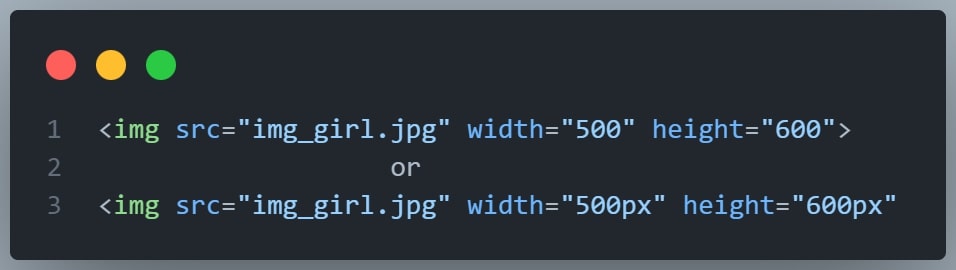
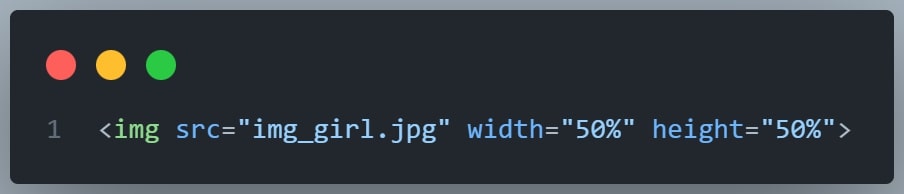
The <img> tag should also contain the width and height attributes, which specify the width and height of the image
In pixels:
In percentages
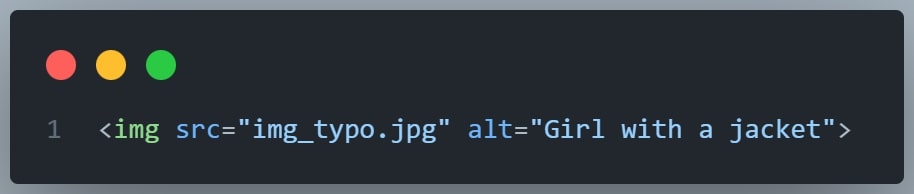
The required alt attribute for the <img> tag specifies an alternate text for an image, if the image for some reason cannot be displayed.
This can be due to a slow connection, or an error in the src attribute, or if the user uses a screen reader.
See what happens if we try to display an image that does not exist:
You will learn more about images in this HTML Images chapter.
The style attribute is used to add styles to an element, such as color, font, size, and more.
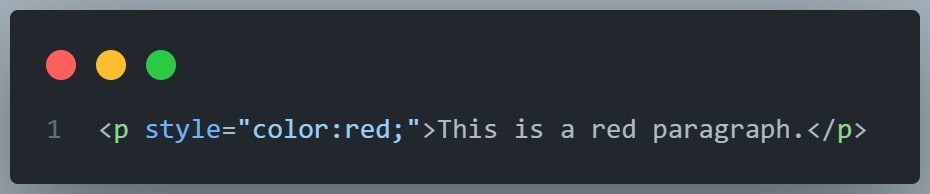
You will learn more about styles in this HTML Styles chapter
You should always include the lang attribute inside the <html> tag, to declare the language of the Web page. This is meant to assist search engines and browsers.
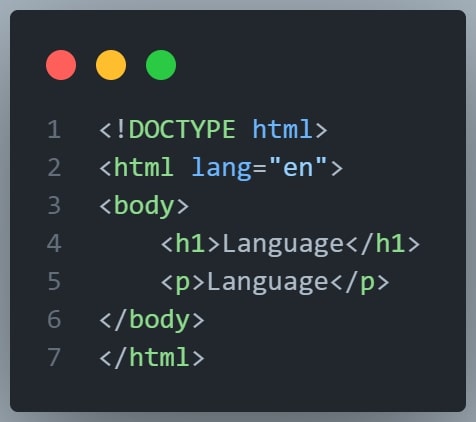
Country codes can also be added to the language code in the lang attribute.
So, the first two characters define the language of the HTML page, and the last two characters define the country.
The following example specifies English as the language and Australia as the country:
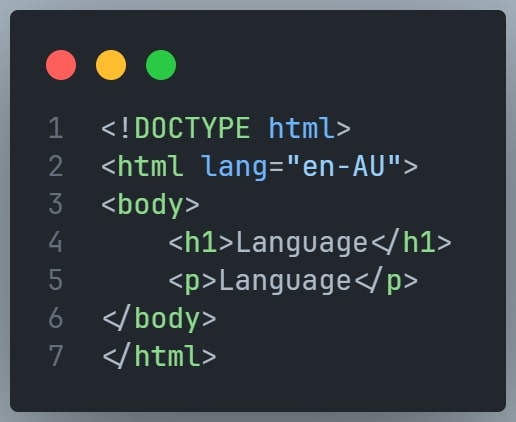
You can see all the language codes in this HTML Language Code Reference.